Method 1 — The My Games page
You can join a new course at any time using your existing account.
If you have signed up by mistake to the wrong course or have completed a Simbound course and would want to join a new one, there are two methods available. You will not need to create a new account.
You can join a new course at any time using your existing account.
Go to simbound.com and enter your credentials to access your current course.
Click on the account icon in the top-left corner of the screen, then select the "My Games" tab from the navigation.
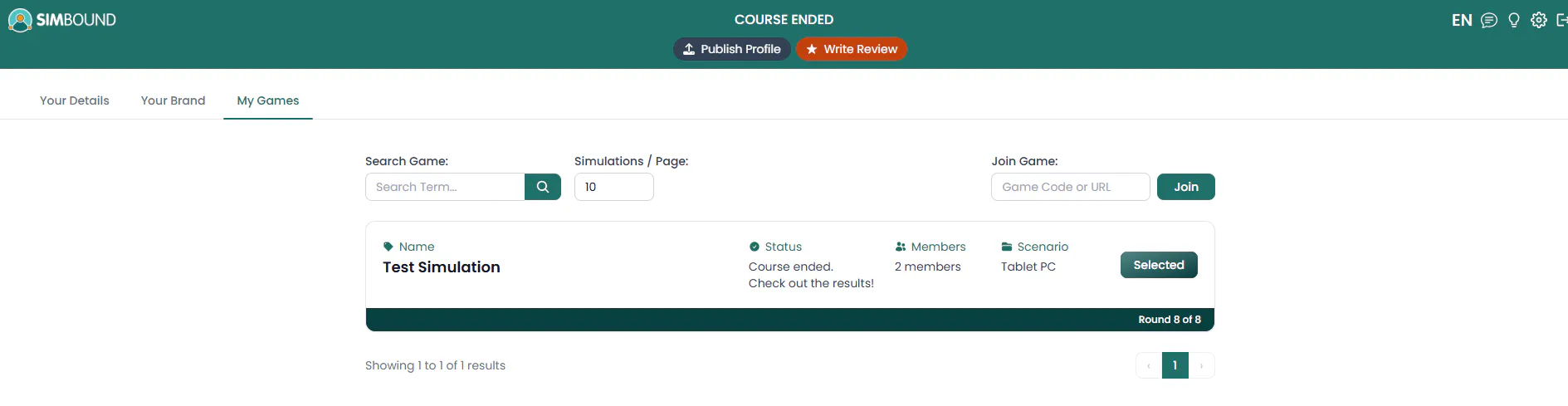
My Games — The "Join Game" field is located in the top-right corner
In the top-right area of the My Games page you will see a field labeled "Game Code or URL" next to a green "Join" button.
Join You can paste either the short code or the full URL shared by your instructor. The code is made up of 5 characters and will be appended to each enrollment link. Then click Join and you will be added to the course.
If your course has ended, Simbound automatically shows you a congratulations screen. From there you can join a new course in just a few clicks.
Go to simbound.com and enter your email and password. If you have forgotten your password, click "Forgot password?" on the login page to reset it. Then follow these steps.
On the dashboard there is a card with the title "Want to join another course?" and an input field below it.
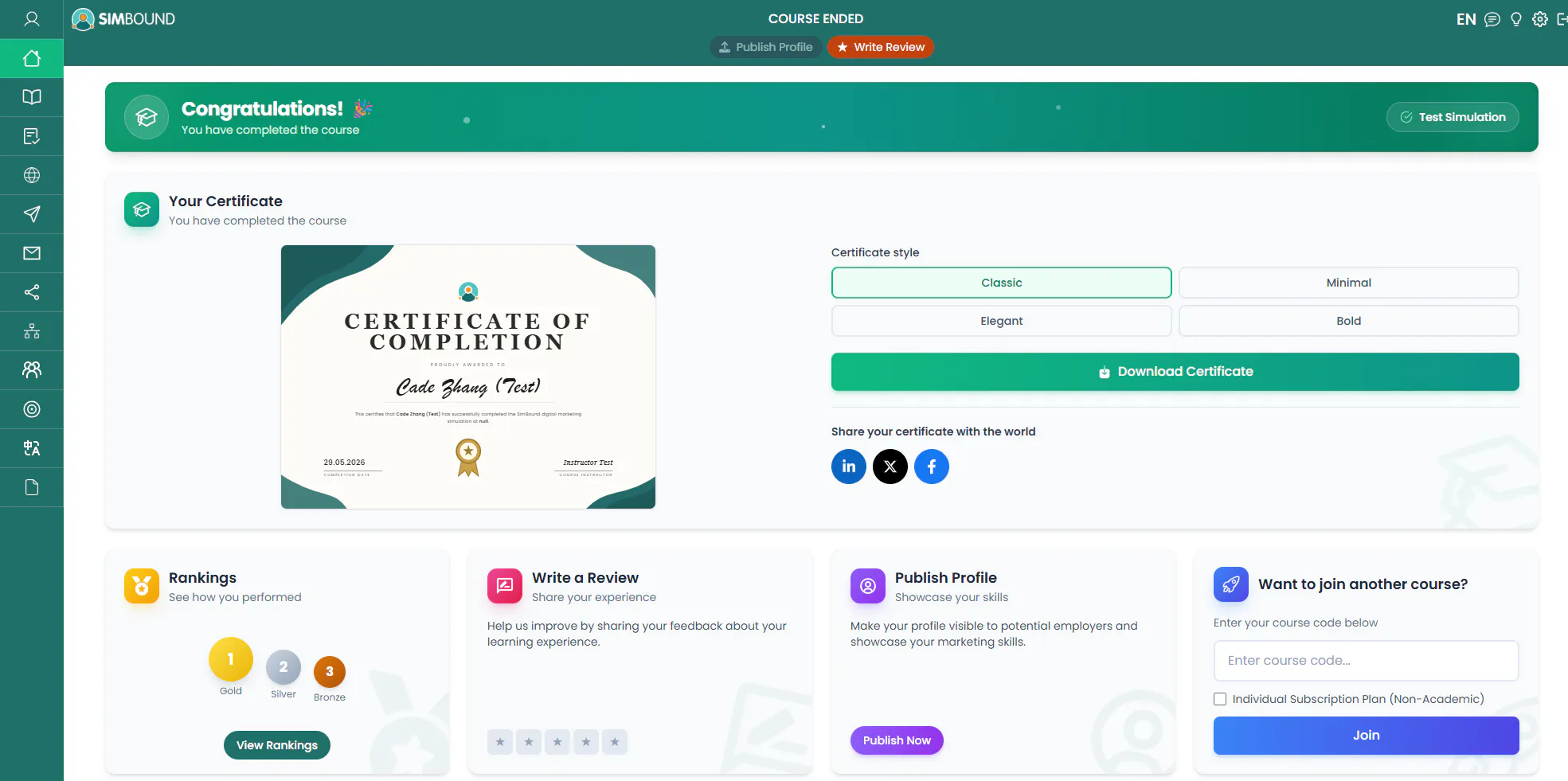
Dashboard — A card labeled "Want to join another course?" is in the bottom-right corner
Type the course code provided by your instructor into the "Enter course code..." field. Then click the blue Join button to enroll. Or select the "Individual Subscription Plan (Non-Academic)" option if you'd like to continue to study on your own.
Tip: If you do not have the course code, ask your instructor. Codes are usually a short combination of letters and numbers. If the code doesn't work, ask your instructor to send you the enrollment link instead.
Tip: Both methods lead to the same result. Use Method 1 whenever you want to join at a later time and Method 2 right after finishing a course.
Check for typos and make sure there are no extra spaces before/after your input. If the problem persists, ask your instructor to confirm the code or use the direct URL instead.
Yes. Simbound supports multiple active courses under the same account. Each course appears as a separate entry in your My Games list.
No. Your existing Simbound account works for all courses. Do not attempt to create a duplicate account — it may cause issues and delays in getting support.
Was this guide helpful?
Thanks for your feedback!